
Editor Help
Labels & automatic content lists
Use consistent tags to connect pages to tiles, quick links and content sliders.
Editors3 min read
Labels connect related content without moving it into the same parent page. They are especially useful for automatically populated navigation and topic-based sliders.
Before you start
- Editor-or-higher access to the page.
- Agreed label names for your team or topic.
Add or remove page labels
- 1Open the page and use its label-management icon.
- 2Add the agreed label or remove an obsolete label in the pop-up.
- 3Submit the change through the page's normal revision and review workflow.
- 4After approval, check the published page and any lists that depend on the label.
Use labels in navigation
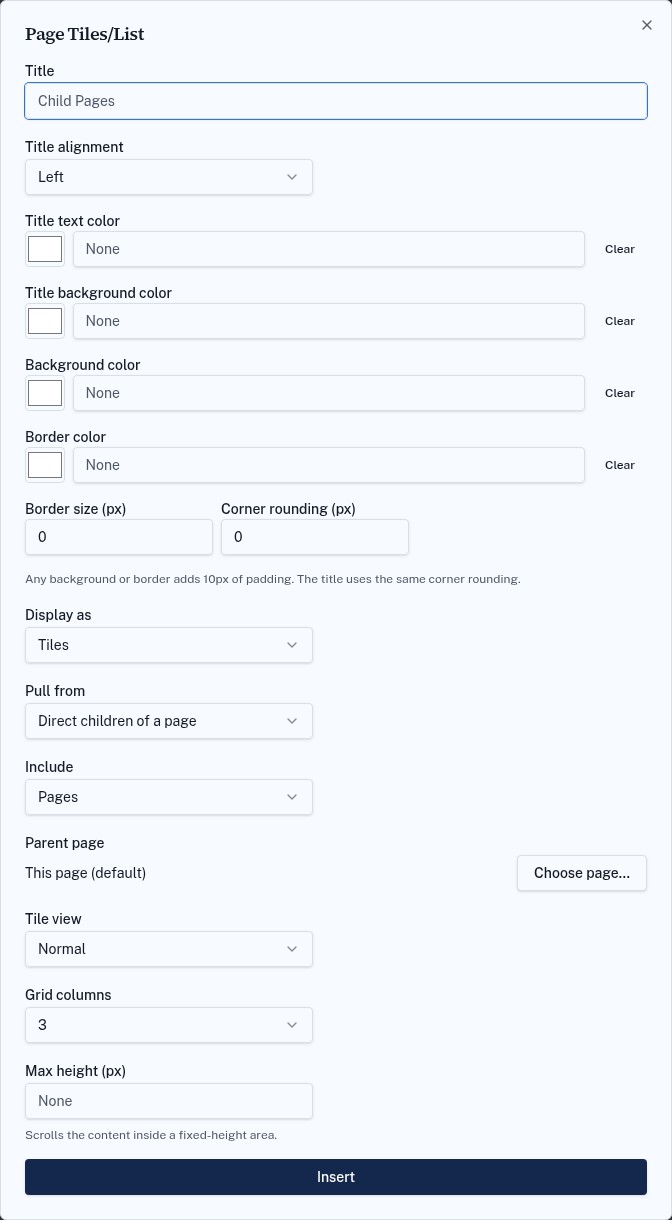
In a Page Tiles/List, Quick Links or content-slider macro, choose the relevant label filters and content scope. Lists use published content the current reader can access; labels never grant permission by themselves.
Troubleshooting
A tagged page does not appear
Check that its label revision is approved, that the macro uses the correct scope and label, and that the reader has access.